Nateo Tutorial: Header Control Column Colors
This is a pretty quick tutorial about modifying the Header Control's colors: The NtTimeChartControl internally has one color reference per column. The NtHeaderControl
uses these colors to paint the background of its columns.
You can set the default color that is used for all columns. Additionally, when the timeDisplayMode is set to Days the NtTimeChartControl
distinguishes between regular days, weekend days and holidays. To find out what sort of day a certain date is, the NtTimeChartControl calles the methods
NtIsWeekend() and NtIsHoliday() of the NtApplication interface. According to the result, the color for the very column is set
either to ColumnBrushDefault, ColumnBrushWeekend, or ColumnBrushHoliday.
You can set these colors after implementing the inteface NtApplication (because this is called when acessing the properties) to specify the colors according to your design.
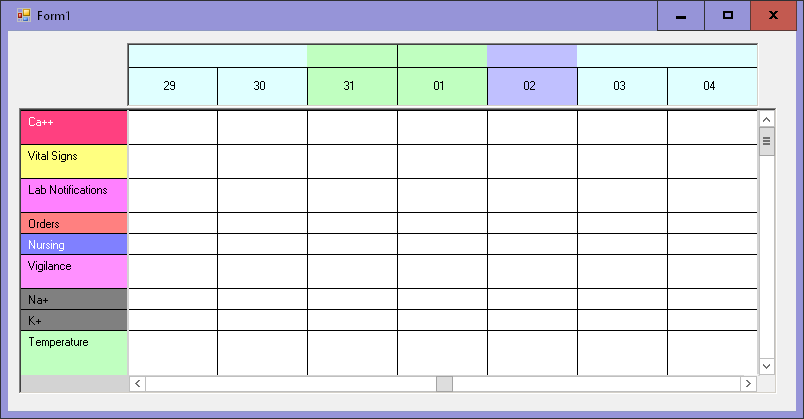
This example shows how to do this in detail. We will create an empty Time Chart (loading an empty data file) and then set up the column colors of the Header Control so that weekend days have a different color
from week days. Additionally we define the current date to be the one and only holiday having a special color on its own.
To start, please create an application with one Flank Control as done in the examples before.
1. Preparing the application
First add the file 'MyNtApplication.cs' to your project. The class in there will act as NtApplication Interface.
Then add the following members to your Form class:
List<NtDisplayDef> displayDefs;
List<NtDataObject> dataObjects;
NtPerspective perspective;
MyNtApplication myNtApplication = new MyNtApplication();
Next add the file 'TutorialData.cs' to your project. The class TutorialData will help us to load data and Display Definitions from the demo files provided in this package.
Then let your Form1_Load() method look like this:
private void Form1_Load(object sender, EventArgs e)
{
ntTimeChartControl.SetNtApplication(myNtApplication);
ntTimeChartControl.Init(10 * 24, 90, TimeDisplayMode.days);
ntTimeChartControl.SetScrollBars(ntTimeChartControlHScrollBar, ntTimeChartControlVScrollBar);
ntHeaderControl.Init(ntTimeChartControl, Font, Font, false);
ntLeftFlankControl.Init(ntTimeChartControl, null, ntLeftFlankControl.ClientSize.Width);
ntBackPanel.SetPadding(2, 2, 2, 2);
ntBackPanel.Repos(ntLeftFlankControl, ntTimeChartControl, ntTimeChartControlHScrollBar, ntTimeChartControlVScrollBar);
ntTimeChartControl.ScrollToDt(DateTime.Now, ntTimeChartControl.ClientSize.Width / 2, 0);
ntTimeChartControl.Focus();
//Load SampleData
Graphics g = CreateGraphics();
string workingDirectory = "..\\..\\..\\..\\..\\DemoData\\"; //adapt this accordingly to the path where the 'data' directory is located
myNtApplication.bitmapDirectory = workingDirectory + "images\\";
TutorialData.LoadIconsFromDir(myNtApplication.iconDict, workingDirectory + "icons\\", g);
if (myNtApplication.iconDict.Count == 0) MessageBox.Show("Error: No icons found!");
displayDefs = TutorialData.LoadDisplayDefsFromFile(workingDirectory + "displayDefs.txt");
perspective = TutorialData.LoadPerspectiveFromFile(workingDirectory + "perspective_11.txt");
dataObjects = TutorialData.LoadDataObjectsFromFile(workingDirectory + "dataObjects_11.txt"); //empty file
//Put Display Definitions and Row Headers to Time Chart
for (int i = 0; i < displayDefs.Count; ++i)
{
NtDisplayDef dd = displayDefs[i];
ntTimeChartControl.SetDisplayDef(dd);
NtRowHeader rh = new NtRowHeader();
rh.InitRowHeaderText(dd.rowHeaderStr, Font, dd.textBrush, dd.bkBrush, g);
ntTimeChartControl.SetRowHeader(dd.dataTypeId, rh);
}
//Put the data to the Time Chart and set the current Perspective
ntTimeChartControl.SetNtPerspective(perspective);
ntTimeChartControl.SetData(dataObjects);
//set the column brushes:
ntTimeChartControl.ColumnBrushDefault = Brushes.LightCyan;
ntTimeChartControl.ColumnBrushHoliday = new SolidBrush(Color.FromArgb(192, 192, 255));
ntTimeChartControl.ColumnBrushWeekend = new SolidBrush(Color.FromArgb(192, 255, 192));
}
Please note that in this case we load an empty data file for simplicity, because we do not want to wait for massive data to load.
2. Implement the interface NtApplication
The interesting part now takes place in the NtApplication interface implementation that is done in the MyNtApplication class (see file 'MyNtApplication.cs'):
The two small member functions that identify holidays and weekend days are not empty as in the previous examples. They now evaluate the date given to them as a parameter and return a bool accordingly.
public bool NtIsHoliday(DateTime dt) { return dt.Date == DateTime.Now.Date; } //we define today as the only holiday
public bool NtIsWeekend(DateTime dt) { return dt.DayOfWeek == DayOfWeek.Saturday || dt.DayOfWeek == DayOfWeek.Sunday; }
The NtHeaderControl that is located above the Time Chart in your Form will call these interface functions to find out if a certain date is a holiday or weekend. If so it chooses the
appropriate brush we defined at the end of our Load() method.
The result
This is how things should look like when running the application:
Back to Overview
