
Nateo Tutorial: Browsing the Time Axis
This is a pretty small tutorial, which describes how you add navigation capabilities to your application in order to let the Time Chart jump to certain points of time. And it shows how to switch the Time Display Mode
between months, days, quarterdays, hours, quarters of hours and five minutes.
The functionality we will create in this tutorial is alredy built into the Time Chart: Right clicking on the Header Control will bring up a small popup that allows browsing in time and changing the
Time Display Mode. Anyway we want to do all of this by our own program to show how the application easily can control the Time Chart.
1. Preparing the application
To start, please create a Form application and add the
- A ComboBox (please name it
cbDisplayMode ) - A DateTimePicker (please name it
dtPicker and set itsFormat property to 'Short') - A Button (please name it
buttonNow )
In the designer of your IDE the form should now look like this:
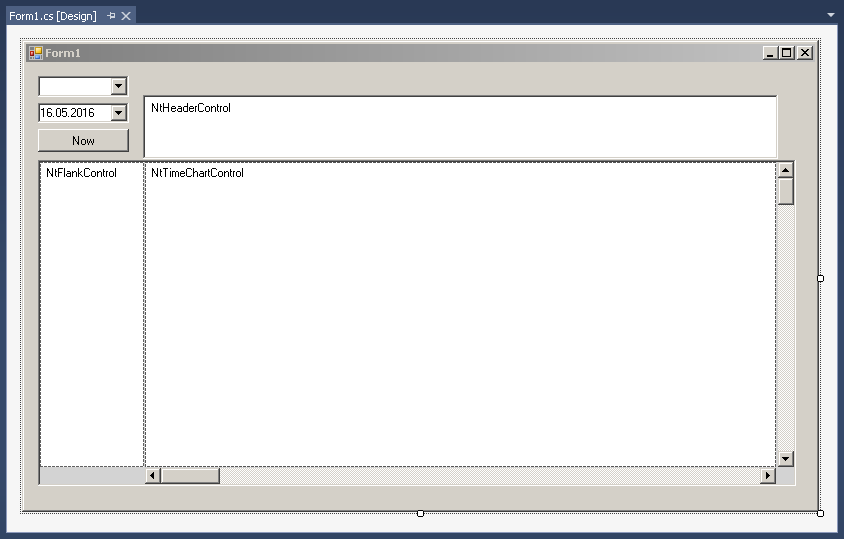
Then add the file 'MyNtApplication.cs' to your project. The class in there will act as
Then add the following members to your Form class:
Next add the file 'TutorialData.cs' to your project. The class
Then let your
Please see that in this code we defined the options that will be available in the ComboBox.
2. Add Handlers for the Browsing Controls
A) Add a
B) Add a
C) Add a
Discussion
As you can see you do not need too much code to control the time browsing. A few aspects are worth mentioning:
- When changing the Time Display Mode, the scale of the time axis changes and as a logical consequense, items and columns are moving around. Depending on how you want the design to be you can define a fixed
point of the display that does not move. Some applications want the left edge of the visible area to stay steady and let the rest of the image move because they adjusted a certain time stamp to the left of the
screen. Other applications (like our one) want the middle of the screen to stay steady. For this reason we provided
ntTimeChartControl.ClientRectangle.Width / 2 as a parameter to theSetTimeDisplayMode() call. - The call to
ScrollToDt() is similar: We do not only define the target time stamp itself. We also can define the X coordinate where we want this time stamp to be located. Typical values again are 0 for the left edge of the screen orntTimeChartControl.ClientRectangle.Width / 2 for the center.
Back to Overview