
NtTimeChartControl.ActivateCondensedView Method
There are two display modes that the NtTimeChartControl can use: Normal view and condensed view. The condensed view does not display the objects themselves
but only a thin vertical line at the objects time stamp. Please see the image below:
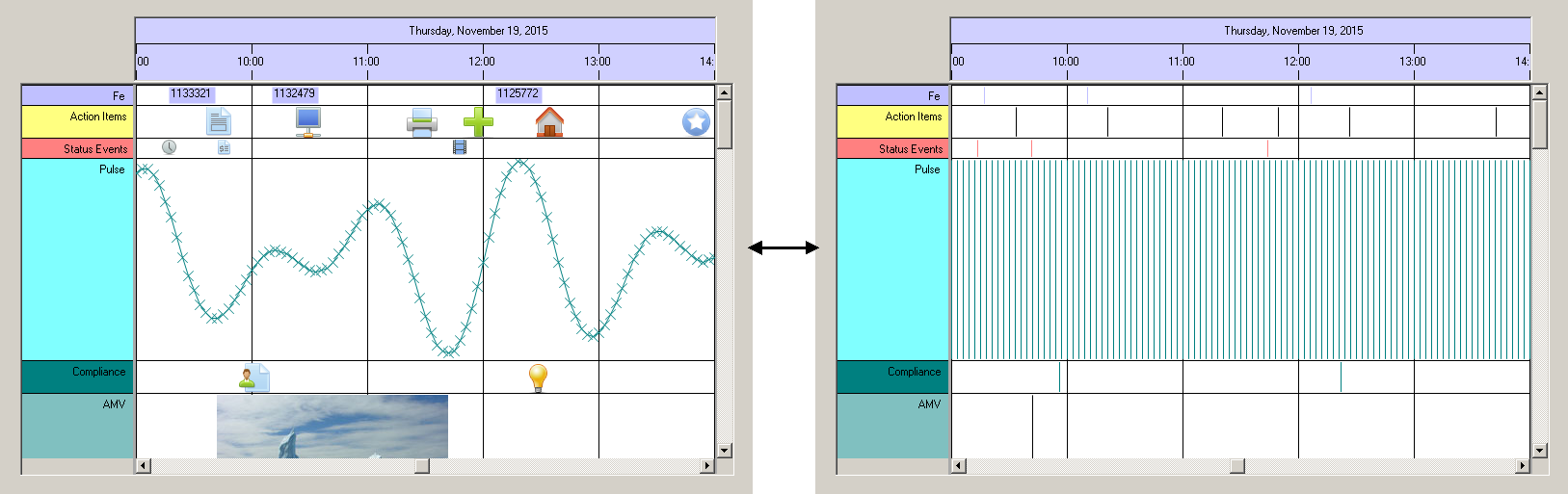
The display switches automatically from normal to condensed view, whenever the amount of objects to be displayed at once gets too big. This is the case when many thousand objects would populate your screen
at the same time. This can happen if the user zooms out to an overview to see one full year at a time. In this case no objects are distinguishable anyway, but the thin vertical lines give the user an impression
of data groups spread over time.
Whenever normal view is active, you can switch to condensed view by calling this method. Call it again with
Please see Condensed View Concept for more details.
Overload List:
| Modifier / Return Value | Name and Parameters | Description |
|---|---|---|
|
|
|
Call this method with |
Return value:
Parameters:
Pass this value to determine if you want condensed view or not.
Remarks:
If condensed view is automatically enforced because of a huge number of data populating the screen, it can not be turned of by calling this method. The limit is 30,000 items visible within one full horizontal scroll sweep. Use the read only property CondensedViewEnforced to find out the current status.
See also: