
NtTimeChartControl.SetRowHeader Method
In the NtTimeChartControl data is organized in rows. In other words: If you have a data set containing different types of data, you might want to see all data elements
of one type in a certain row and all data of another type in another row.
In order to let the user know, which data is shown in which row, you might want to label each of the rows accordingly. This is done by a row header which is attached to the left or right of a row.
A row header is defined by an object of type NtRowHeader.
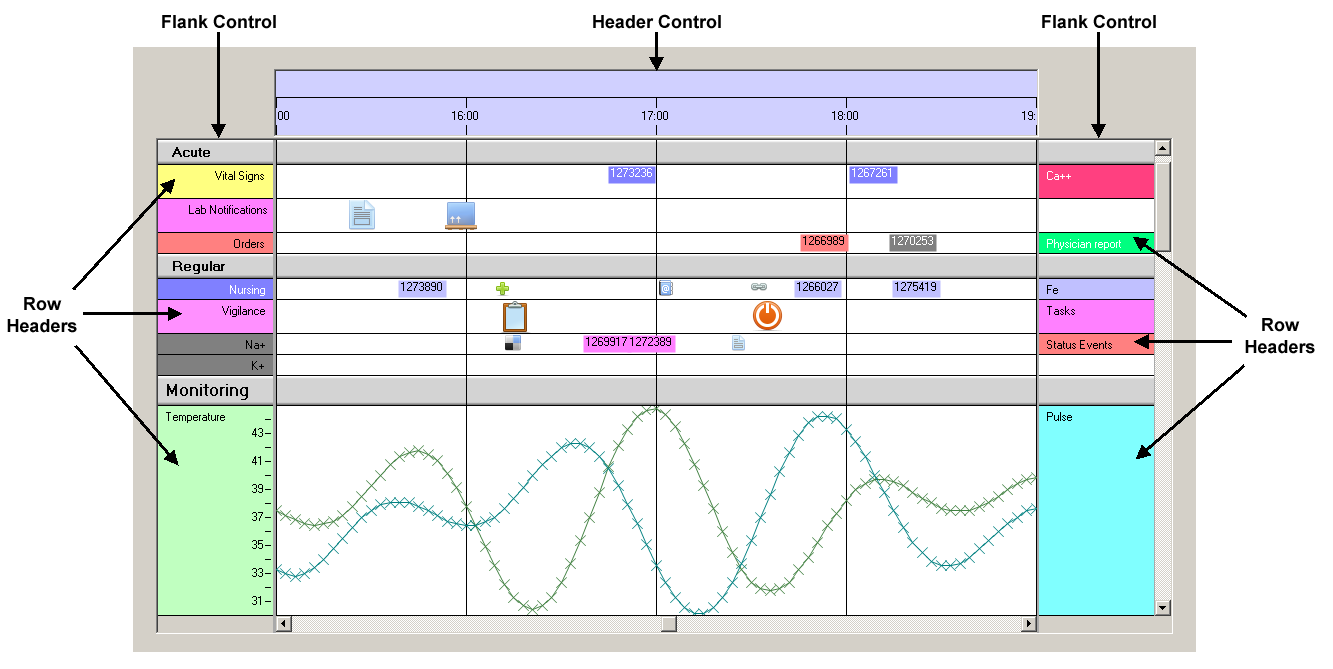
Row Headers are organized vertically within NtFlankControls.
Below please see an example of a NtTimeChartControl which is joined by one NtFlankControl on each side, both containing
several NtRowHeaders:
Overload List:
| Modifier / Return Value | Name and Parameters | Description |
|---|---|---|
|
|
|
Sets the Row Header for the specified data type. |
Return value:
None.
Parameters:
The id of the data type this Row Header is defined for.
NtRowHeader
The row header object to be set.
Remarks:
You never set a NtRowHeader for a certain row. You set it for a certain data type by calling
A user can drag row headers vertically within the NtFlankControl to change the order of rows. Doing so does not affect the data type association of this row: The full row
with all data elements in it is being moved. And so are the row headers of the same row in all other NtFlankControls. In the picture above: If a user drags a row header of the
NtFlankControl on the left and moves it vertically, the row header of the NtFlankControl to the right moves the same.
In other words: It makes no difference in which NtFlankControl a user performs the vertical dragging of rows. Please note that vertical dragging of rows is possible
only within NtFlankControls but not in the NtTimeChartControl.
Please see the tutorial Row Headers and Flank Controls to get a quick impression how to use this method.
See also:
NtRowHeaderNtFlankControl
NtPerspective